
What’s new in Pliable
This is the biggest update to Pliable since launch, and it’s built around one idea: everything about your data (the work in flight, the questions, the model itself) should live in one place, not scattered across email threads, Slack DMs, and separate corners of the product.
Here’s what changed.
Requests: talk to us in the app
This is the one we most want you to try.
Every conversation with the Pliable team and your AI data engineers now happens in the app, under Requests. Need a new data source connected? A number that looks wrong checked? A change to your model? Open a request instead of sending an email.
Each request is a single thread with everything attached to it:
- A clear status, always. Awaiting Pliable, In progress, Awaiting you, or Done. The status flips automatically based on who replied last, so nobody has to remember to update it, and you can tell at a glance what’s actually blocked on us versus waiting on you.
- Files and reports in context. Drag in a spreadsheet or screenshot. Reports your AI data engineers produce get attached right to the thread, and open full-screen with the conversation alongside them, so you can read a long analysis and comment without losing your place.
- Threaded replies. Side conversations stay in a thread instead of burying the main one.
- Live updates. New messages appear as they’re posted. No refreshing.
- Email that behaves. You still get notified, but a burst of messages arrives as one email rather than six, and if you’ve already read the thread in the app, we don’t email you at all.
- A request type, so it routes itself. Data source, data quality, question, change, or other.
Ellie can open requests too. When she hits a question she genuinely can’t answer from your data, she’ll start one rather than leaving you with a dead end.
An email thread tells you nothing about where a piece of work stands. A request does: one list of everything in flight with us, what it’s waiting on, and the full history of what was asked and what was decided. Same on our end, which means less re-explaining and faster turnaround.
A home screen built around what needs your attention
The home page used to show you saved objects. Now it shows you work.
- Open requests: everything in flight with the Pliable team, with unread badges so you can see what moved.
- Knowledge Base: articles Ellie has proposed that need a human to approve or reject, including rewrites of existing ones.
- What Ellie can see: every connected source, how fresh each one is, how many tables and records it’s contributing, and which ones still need setting up. If a source isn’t connected, Ellie will tell you so rather than guess.
- Ask Ellie, right at the top: type a question and it opens a new conversation with that question already sent.
- A freshness line under the greeting telling you how old your data is, and flagging a failed build with a link to the logs.
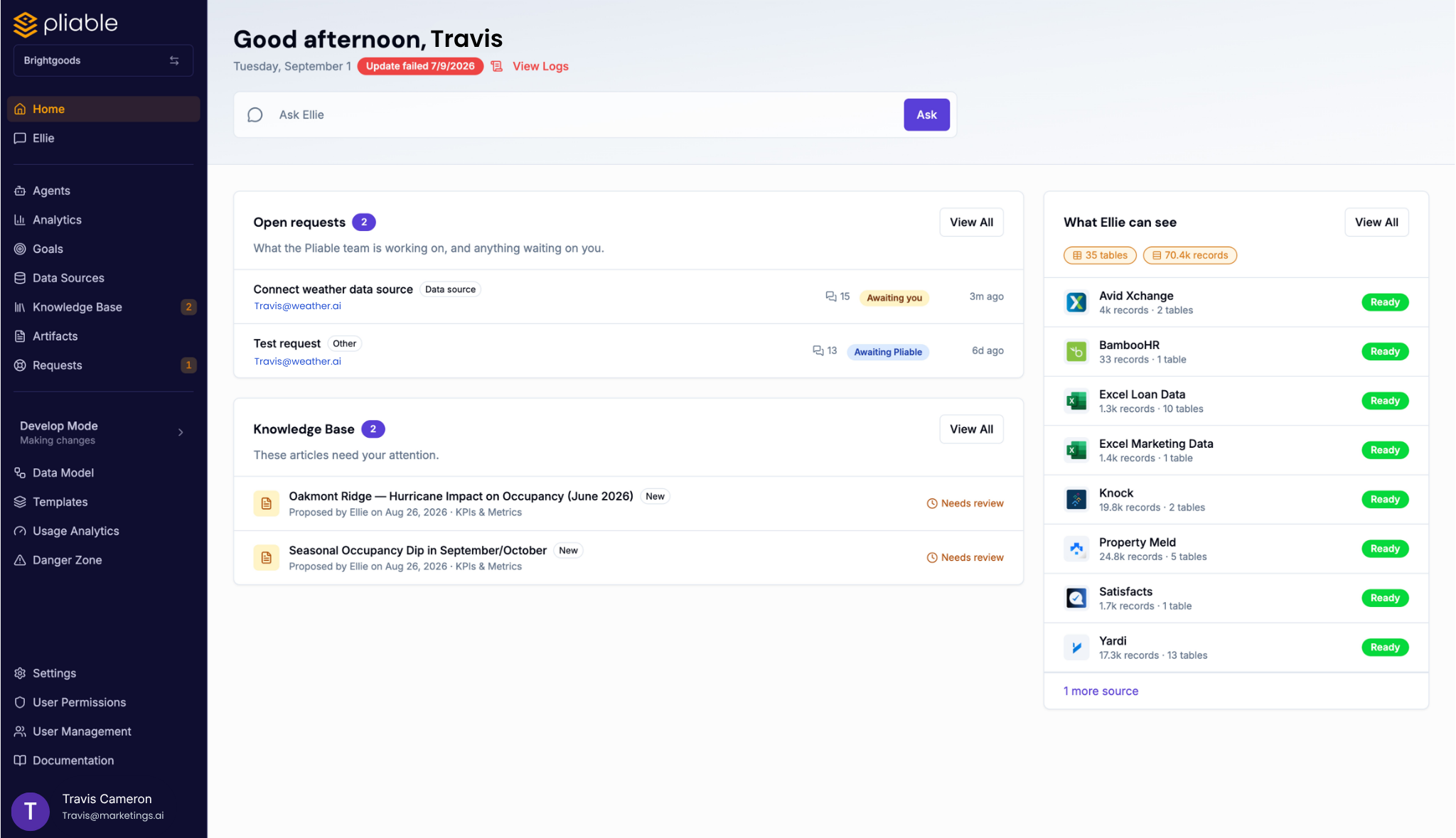
One removal worth flagging: you can no longer pin a dashboard over the home page. With actual work on the page now, that trade stopped making sense.
Data Model: one hub for your whole pipeline
Modeling and the Semantic Layer used to be two separate sections describing the same thing from different ends. They’re now a single Data Model section with five tabs (Diagram, Entities, Models, Metrics, Dimensions) and a Quick Nav down the left ordered the way data actually moves: Sources → Transformations → Entities → Metrics → Dimensions.
- Click to peek, double-click to open. A single click on anything in Quick Nav shows its details in a side panel without navigating away.
- Sources and Transformations have their own lists instead of sharing one long combined page.
- The Diagram now leads with what you came for. Entities and their relationships are always drawn; Metrics and Sources & Transformations are layers you switch on when you want them. Plus proper zoom controls.
- Your old bookmarks still work: every previous URL redirects to its new home.
Goals: now in beta
You can now set targets for your metrics and see performance against plan without leaving the app.
- Set a target on any metric, at any slice. Revenue for May. Revenue for May, in the US, on Shopify. Whatever grain you plan at.
- Above or below. A revenue target reads green when you beat it; a cost target reads green when you come in under it.
- Bulk upload by CSV. Download a template built from your own dimensions, fill it in, upload it.
- Plan vs. actual in your tables. Goals appear next to actuals in table visualizations. Targets for periods that haven’t happened yet show as plan rows with the actual left blank, never zero, which would read as real data.
- Ellie knows your targets. Every analysis she runs carries the goals for its metrics, so she’ll tell you you’re 12% behind plan rather than just reporting the number. You can also ask her about targets directly, and she’ll factor in any notes you left explaining the reasoning behind them.
Goals is in beta and off by default. Open a request and we’ll turn it on for you.
Smaller things you’ll notice
- Analytics is one page. Charts and dashboards live together, with favorites, instead of being split across separate pages.
- Consistent page headers across the app: every screen’s top bar now looks like it belongs to the same product.
- Dark mode is properly dark. The sidebar keeps its navy, and the accent palette was retoned to stop clashing.
- Production mode is genuinely read-only. A few controls stayed editable when they shouldn’t have been. They don’t anymore.
- Ellie asks better questions. When she needs to clarify something, she can offer you options to pick from instead of a wall of text, and while she’s working, a live “Thinking…” indicator replaces the old spinner so you can tell the difference between working and stuck.
- Connector logos now show up wherever your sources are listed.
One ask
If you take one thing from this: next time you’d reach for email, open a request instead. It’s the same conversation, with the added benefit that both you and we can see exactly where it stands.
Questions about any of this? Open a request. (Yes, we see the irony of ending a blog post that way.)